Share the view. Keep the location.
A practical look at GPS metadata and what cleaning a photo can—and cannot—hide.
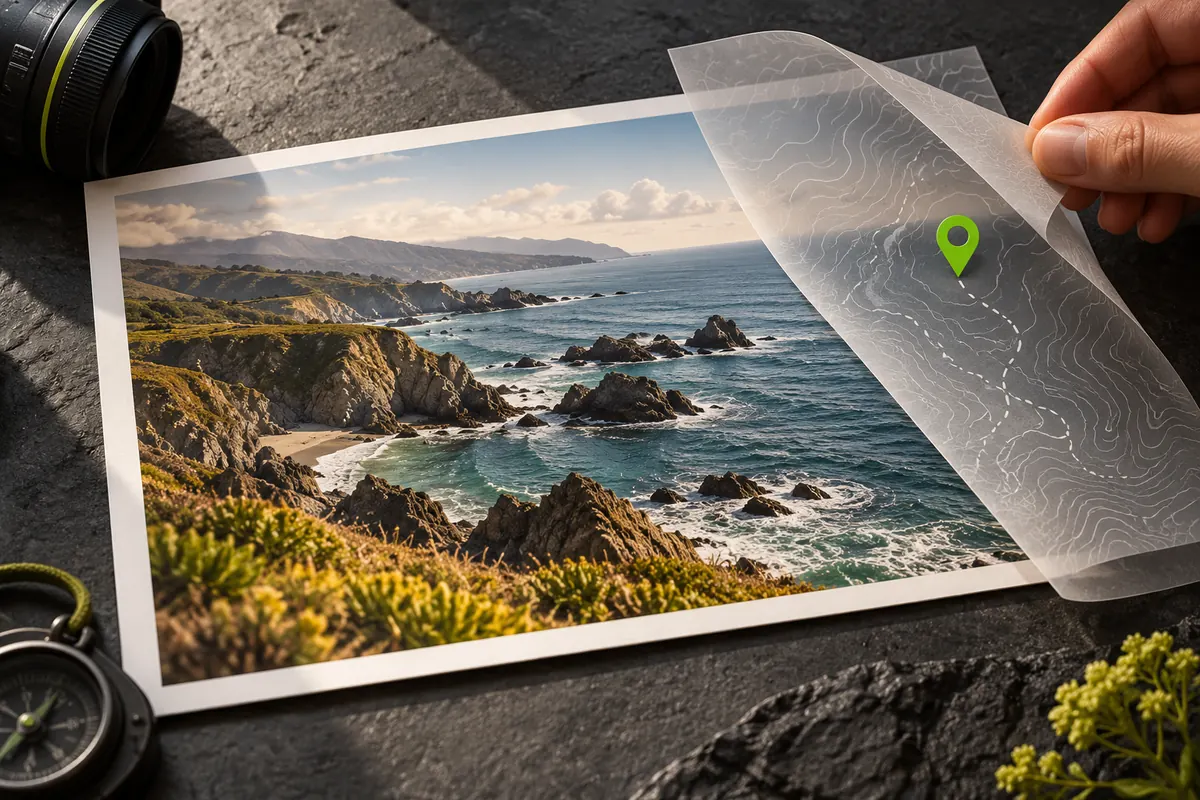
Start by checking
Open a photo in EXIF Reader and check whether GPS fields are present. Some cameras record location only when enabled. Others never record it. A photo shared through another app may already have had those fields removed.
Make a clean copy
For supported JPEG, PNG and WebP files, EXIF Remover removes personal metadata while preserving the image payload. Display information such as orientation and, by default, the color profile can remain. The original file is not modified.
Check the visible image too
A clean metadata report does not make a photograph anonymous. Faces, signs, reflections and recognizable landmarks can still reveal information. Review the image itself before sharing; a metadata tool cannot remove information contained in the pixels.
Where location can hide
GPS coordinates are the obvious part, but a place can also appear in text that someone typed into a description or keyword, and in XMP data written by editing software. A careful check looks at all fields, not only the GPS ones.
A step-by-step routine
- Keep the original and work on a copy.
- Open the copy in EXIF Reader. If a location notice appears, the file has coordinates. In All fields, search for GPS, Location and City.
- Choose Remove metadata. Keep the colour profile unless you have a reason to remove it.
- Download the clean copy.
- Open the downloaded file in Reader and check again.
- Look at the picture itself before you share it.
Stop it at the source next time
Cleaning is a fix. Prevention is simpler: switch off location tags in your phone’s camera settings, or leave them on only for trips where you want the places recorded. The guide on turning off photo location on iPhone and Android walks through both.
Whatever you choose, make checking a copy a habit before you post, especially for photos taken at home, at work or near a child’s school.
What stays in a cleaned file
To make sure the picture still displays correctly, the cleaner keeps a few technical fields: the image orientation and, unless you choose otherwise, the colour profile. These do not identify you or a place.
What cleaning cannot hide
A location can also be worked out from the picture: landmarks, street signs, a skyline, the view from a window, reflections, shadows and even weather. Removing metadata does not touch any of these pixels, so look at the image as a stranger would.
Common questions
Does removing location lower image quality? The cleaner removes metadata blocks without re-encoding the picture, so the image data is not recompressed.
Which formats can be cleaned? JPEG, PNG and WebP files up to 20 MiB. HEIC files can be read but not cleaned yet.
Is my photo uploaded? No. The file is processed in your browser.
Will the person I send it to see where it was taken? Not from the metadata of a clean copy, though the picture itself may still show it.
Put it into practice.
Create a clean copy of a JPEG, PNG or WebP photo on your device. Then reopen the downloaded copy in Reader to check it.