How to turn off photo location on iPhone and Android
Stop new photos from recording where they were taken, remove location from the ones you already have, and check the result.
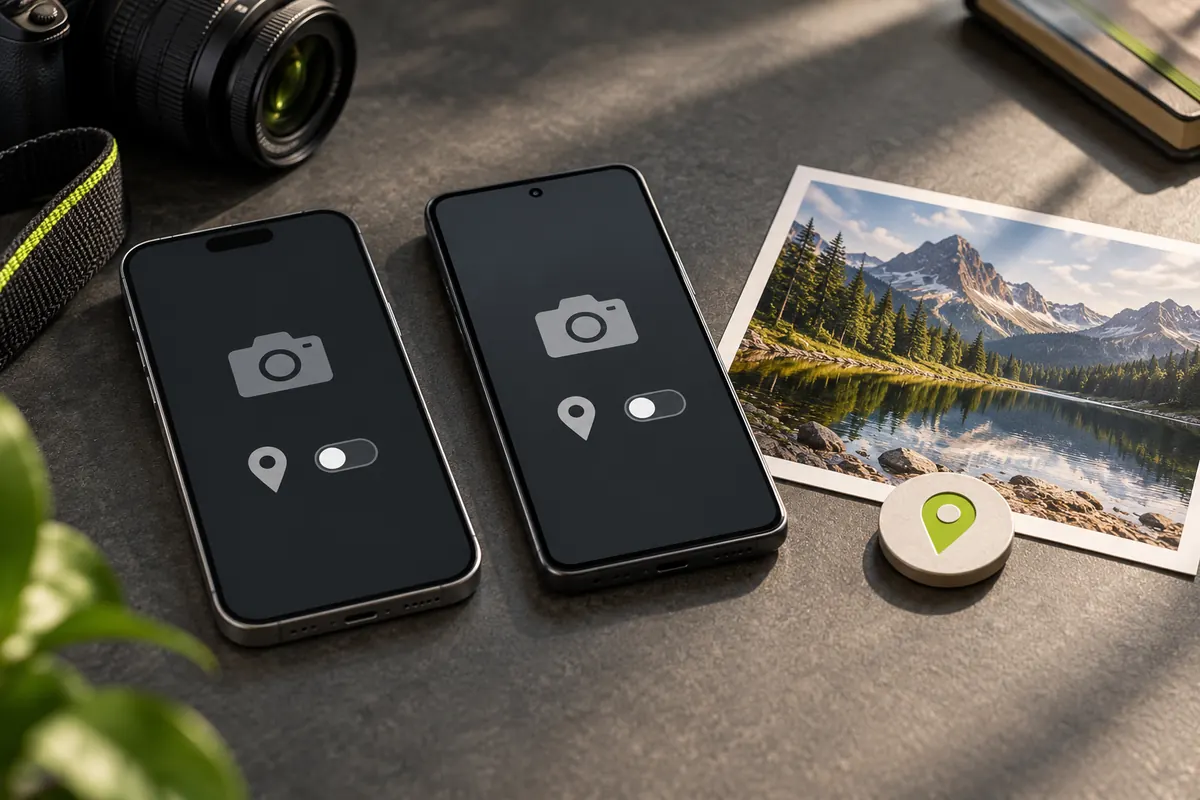
Two different problems
Most phones can write GPS coordinates into a photo’s EXIF data at the moment you take it. That is the first problem. The second is every photo you already have: switching the setting off does not change them.
Treat the two separately. First stop new photos from recording a location, then clean the specific photos you plan to share.
Stop new photos from recording location
On an iPhone, open Settings, then Privacy & Security, Location Services, Camera, and choose Never. On most Android phones, open the Camera app, go to its settings and look for an option called Location tags or Save location, then turn it off. Menu names differ between phone makers and system versions, so treat these steps as a map rather than exact instructions.
Photos taken without location data will also stop appearing on your photo library’s map. If you enjoy that view, you may prefer to leave the setting on and clean photos only when you share them.
Share without sending the location
The iPhone share sheet has an Options button near the top; inside it you can switch Location off for that particular share. Other phones and apps offer similar switches, sometimes called Remove location. These controls change what is sent, not the original file in your library.
Sharing methods behave differently, and you cannot assume how a given app or service treats a file. The safest habit is to check the copy you actually send.
Check what a photo contains
Open EXIF Reader and choose the photo. If the page shows a location notice, the file carries GPS coordinates. Switch to All fields and search for GPS to see exactly which values are stored. The file is read in your browser and is not uploaded.
Remove location from a photo you already have
Use Remove metadata for JPEG, PNG or WebP files. Many iPhone photos are HEIC: PixKnow can read HEIC but cannot clean it. Export or convert a JPEG copy using your phone’s sharing or export options first, then clean and check that copy.
Keep your original. A clean copy is for sharing; the original may still hold useful information for you.
Where the location comes from
Phones estimate position from GPS satellites, nearby Wi-Fi networks and mobile towers, and may record a position even indoors, where it is usually less precise. Indoors or in a dense city the recorded point can be off by tens of metres; outdoors under open sky it is often much closer.
A location in a photo is therefore a strong hint rather than proof, but it can still point to a home, a school or a workplace.
Common questions
Will turning off Camera location stop other apps from using my location? No. The setting applies to the Camera app’s access. Other apps have their own permissions in the same menu.
Do screenshots contain GPS coordinates? Screenshots are produced by the phone rather than captured by the camera, and they usually carry little or no location data. If it matters, open one in Reader and see.
What about videos? Video files can store location too. Check the files you share the same way. PixKnow’s Reader and Remover are built for still photos, not video.
Check the result, and the picture
Choose the downloaded file in Reader. The location notice should be gone and the GPS fields should no longer appear. A clean report only describes the file’s metadata.
Then look at the image itself. Street signs, house numbers, landmarks, reflections and a recognisable view can reveal a place even when no coordinates remain.
Put it into practice.
Explore a photo on your own device. Your selected photo is not uploaded.